Author Archives: Merlin Halteman

How to fix Printer Properties that are grayed out

Today I was at a customer doing an onsite visit. I was working with a new printer they had just installed. I went to the advanced tab to change some settings and all of the printer settings were grayed out. I couldn’t make any changes. Printer Properties Grayed Out

However, the fix is really simple just go back to the General tabChange Printer Properties

and click Change Properties in the bottom left corner. The printer properties box will close and will reopen with administrator privileges. Now click on the advanced or port tab and you will be able to make changes since it opened the dialogue box with administrator privileges.

Note: If you are trying to change the properties on a printer that was shared from another computer, this isn’t possible. You need to go to the computer that the printer was shared from to be able to change the properties.

I hope this helps. This was posted by techspeeder
Server Error 404 – File or directory not found – When accessing Remote Web Access

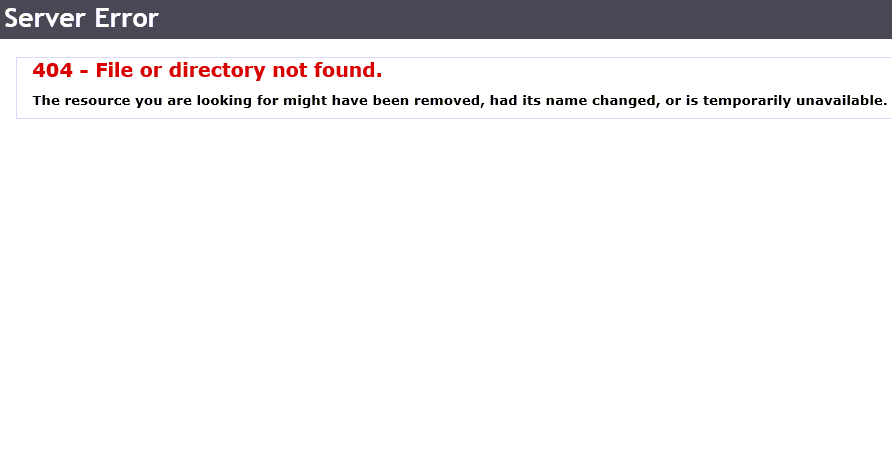
Here is a compatibility issue I ran into a couple times. When a someone tries to access their remote web access portal, they get an error. After putting in their credentials the remote web access portal will begin to load then all of a sudden they will get the following error.  Server Error 404Server Error 404Server Error 404Server Error 404Compatibility View SettingsServer Error 404Server Error 404

Server Error 404

Server Error  404 – File or directory not found. The resource you are looking for might have been removed, had its name changed, or is temporarily unavailable.    

Sometimes this error indicates something more serious, but recently I have found that you will get this error because of an Internet Explorer 11 and remote web access incompatibility.

The first thing to do is check which version of Internet Explorer you are using. Go to the Gear icon and click about Internet Explorer. Check if you are running Internet Explorer 10 or 11. If you are , add your remote web access URL into the compatibility mode list.

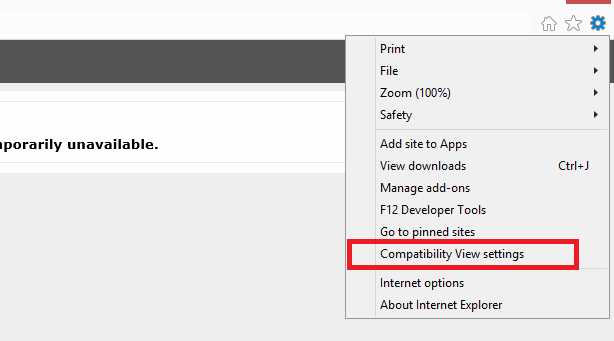
Here are the steps to add the site into Compatibility View. Click the gear icon

Compatibility View Settings

and select the Compatibility View Settings options. Add your website to the Compatibility View list and hit Close. Refresh your tab and see if that makes a difference, it did for me.

This was posted by techspeeder.

How to Configure a Actiontec DSL Modem for Century Link

Here are the settings to configure you Actiontec DSL Modem with Century Link as your Internet provider. The modem I used for this blog post was a Actiontec  GT701D.

First off plug the power cable and DSL cable into the modem. Next plug one end of the Ethernet cable into the modem and the other end into your computer. Check to make sure the Power light, DSL light, and Ethernet light are all solid green. If the DSL light is not solid green call Century Link. Something is not right with your Internet connection and you will not be able to configure the modem without a good DSL signal.

Open your browser and type in the IP address of the modem. Normally the IP address of the modem will be 192.168.0.1 .  This should take you to a “Main Menu” screen. Normally I try the “Auto Configure Your Gateway” option, but most times it doesn’t find the settings for Century Link. If it doesn’t find the settings, click on the “Manual Setup” option.

Select the “RFC1483 via DHCP” option under Quick Setup and then Apply.

ISP


Next go under Advanced Setup and click DSL Settings.
Continue reading →

Import AutoComplete file into new Outlook 2010 Profile

Recently after a new server install, I ran into this issue.  When installing a new server I took the computers off the old domain and joined them to the new one. During this process I made a new Windows profile. Once joined to the new domain, I logged into the new Windows 7 profile and started setting up Microsoft Outlook 2010 .  I got the email account set up just fine however, the autocomplete was missing. Here is how I rescued my autocomplete file. These users were running Windows 7 and Microsoft Outlook 2010.

Please follow the steps carefully, I tried to explain this tedious task the best I could 🙂 .

Step One: Browse to your old Windows’ profile autocomplete guid: C:\Users\<oldusername>\appdata\Local\Microsoft\Outlook\RoamCache

autocomplete cache

In Outlook 2010 and newer your autocomplete file is stored as a Dat File. The file will begin with Stream_Autocomplete_ and then the guid number/letter combo . 

Step Two: Browse to your new Windows’ profile autocomplete guid: C:\Users\<newusername>\appdata\Local\Microsoft\Outlook\RoamCache Continue reading →

Microsoft Outlook: Delivery has failed to these Recipients or Groups

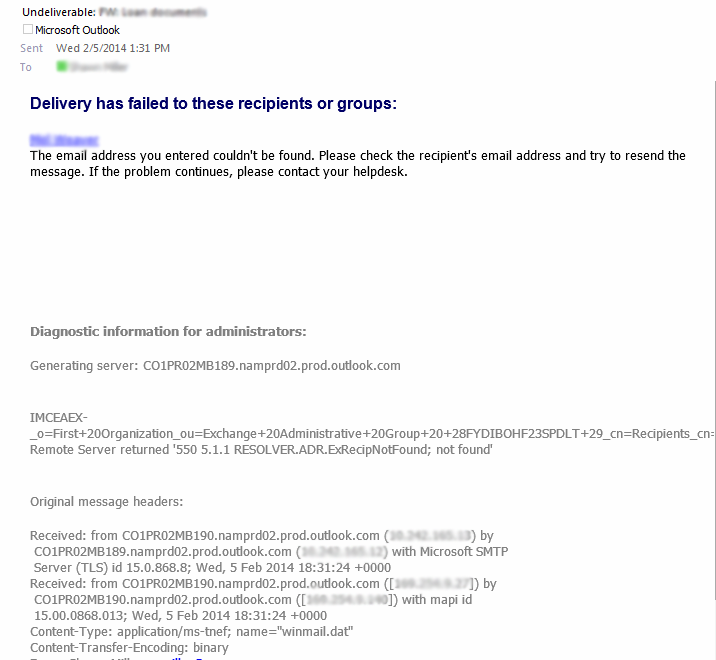
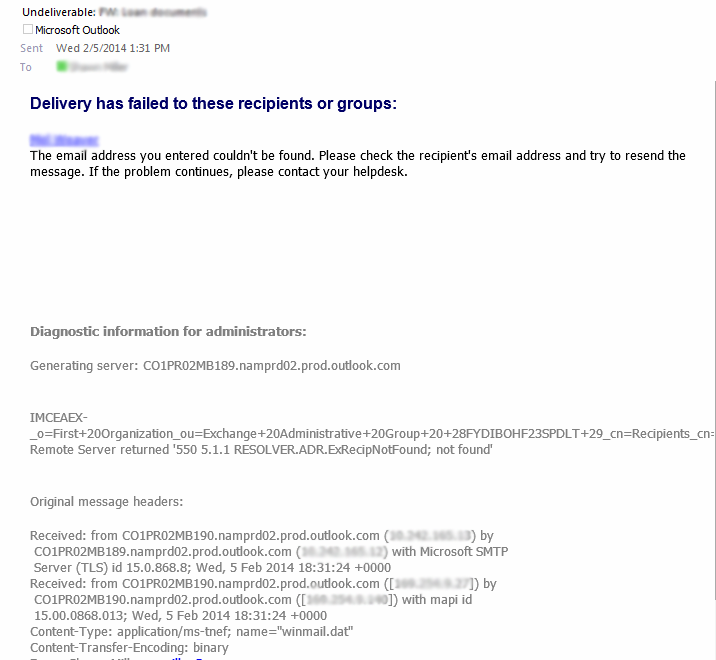
Our customer recently switched to Microsoft’s Office 365 exchange service as their email provider. Previously to this transition, this company was hosting their own exchange server. After the upgrade some of the employees would get an error message when emailing within the organization.  Here is the message:Outlook Errorscreenshot.bmpscreenshot

sreenshot

The email address you entered couldn’t be found. Please check the recipient’s email address and try to resend the message. If the problem continues, please contact your helpdesk.  Outlook ErrorOutlook Error

Continue reading →